I filled a 256GB iPhone in one weekend at a family wedding. Not with photos. With three hours of 4K 60fps footage I shot because the dance floor looked cinematic. The next morning, my phone refused to download a podcast.
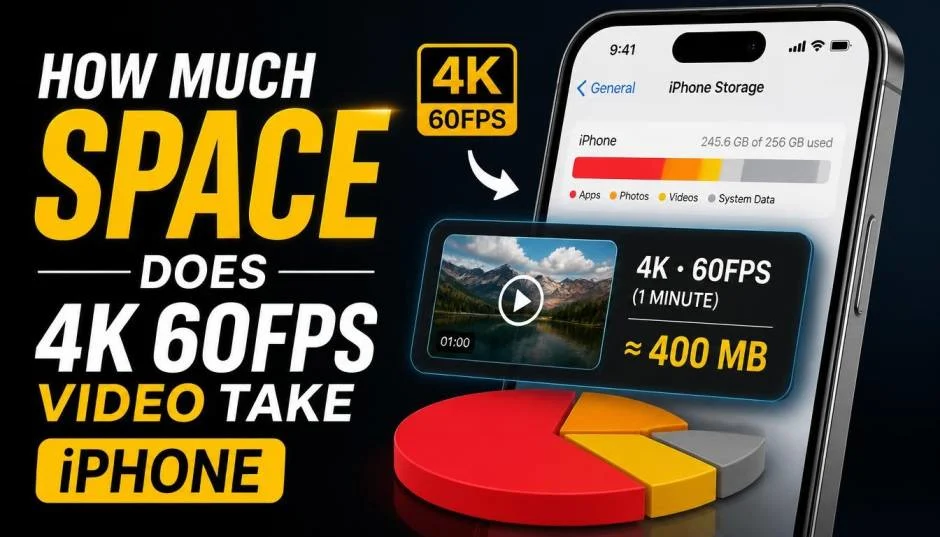
That was the moment I learned the brutal arithmetic of high-frame-rate video. If you are searching for how to shoot 4k 60fps iPhone storage management, the short answer is simple. One minute eats roughly 400MB. The longer answer is where the planning happens.
What Is Shoot 4k 60fps iPhone Storage?
Apple's own settings screen gives you the estimate. A minute of 4K at 60fps takes about 400MB. That is nearly half a gigabyte.
Read Also: Why Does My iPhone Camera Keep Freezing in Video Mode?
Do the math for real situations.
-
A ten-minute school concert: 4GB.
-
A half-hour youth soccer game: 12GB.
-
A one-hour hike with scenic clips: 24GB.
That is before you count photos, apps, messages, and the system software eating its share. On a 128GB phone, one hour of 4K 60fps video can consume nearly a fifth of your total storage.
Why 60fps Costs So Much More Than 30fps?
The frame rate doubles the data. It is that simple.
A minute of 4K at 30fps runs about 170MB in the efficient HEVC format . Bump it to 60fps and you more than double the file size to that 400MB figure.
You Must Also Like: How to Customize iPhone 17 Pro Camera Control for Faster Shooting?
The trade-off is motion. 60fps makes fast action look smooth. Sports. Kids running. Anything where you pan quickly. For talking-head interviews or static scenery, 30fps is plenty. For a dance floor or a puppy, 60fps earns its storage cost.
The Codec Setting Most People Never Touch
Your iPhone has a setting that can halve your file sizes without changing resolution or frame rate. It is called HEVC.
HEVC (High Efficiency Video Coding) compresses video more efficiently than the older H.264 standard. Apple enables it by default on newer iPhones.
If you ever switched to "Most Compatible" format for sharing, you are likely recording in H.264. That format produces larger files.
Check your settings. Go to Settings > Camera > Formats. Make sure "High Efficiency" is selected. That single toggle can save you gigabytes over a month of shooting.
The ProRes Trap (If You Have a Pro Model)
If you own an iPhone Pro or Pro Max, you have access to ProRes. It is a professional codec that preserves far more data for editing. It also destroys your storage.
One minute of ProRes 4K at 30fps can exceed 6GB. At 60fps, it is even worse. ProRes bypasses the efficient HEVC compression entirely. It is designed for filmmakers who offload footage to external drives, not for someone capturing birthday parties.
Unless you are editing on a professional timeline and have an external SSD plugged in, leave ProRes off. Check Settings > Camera > Formats. If ProRes is enabled, disable it.
How to Actually Manage the Storage?
The settings screen tells you the cost before you shoot. Open Settings > Camera > Record Video. Each option lists the estimated size per minute. That is your budgeting tool. Check it before a trip, not after.
If you already have a library of 4K 60fps clips, you have options.
Optimize iPhone Storage offloads full-resolution files to iCloud and keeps smaller versions on your phone. You need iCloud space, and downloads require a decent connection. But it frees local storage fast.
Offload the apps you never use. Settings > General > iPhone Storage shows what is eating space. Offloading an app removes the binary but keeps your data. You can re-download it later. That frees room for video without losing your progress in games or chat history.
Change the default for casual shooting. Drop to 4K 30fps or 1080p 60fps for everyday clips. Save 4K 60fps for moments that actually benefit from it. Your storage will thank you.
The Final Thoughts
I keep my iPhone set to 4K 30fps by default. I switch to 60fps only when I know I am filming motion that needs it. Before any trip, I check Settings > Camera > Record Video and remind myself what a minute actually costs. And I keep "High Efficiency" on, always.
That wedding footage? I offloaded it to a laptop that night. The dance floor clips were worth the space. The random hallway shots were not. The lesson was not to stop shooting. It was to know the math before the phone stops listening.
This article provides comprehensive insights about How Much Space Does 4K 60FPS Video Take iPhone?. Bookmark this page for future reference!