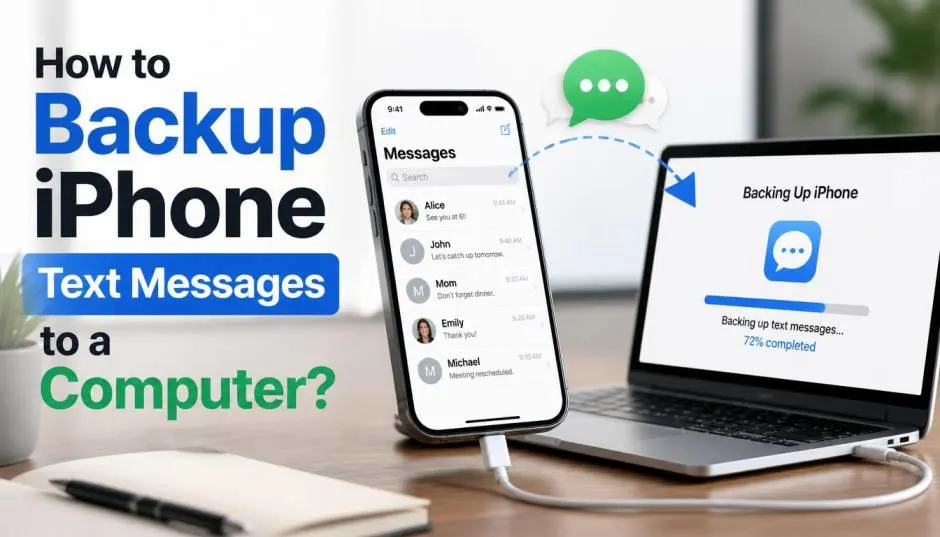
Learning how to backup iPhone text messages to computer sounds simple until you actually try it. Apple doesn’t give you a “Save Messages” button. There’s no export to PDF or CSV option in the Messages app itself.
I learned this the hard way after losing three years of conversations when an old iPhone died in 2024. Since then, I’ve tested every backup method on Mac, Windows, and iCloud.
Some work well. Others leave you locked out of your own data. Here’s what actually works, what doesn’t, and the trade-offs nobody warns you about.
The Uncomfortable Truth About iPhone Message Backups
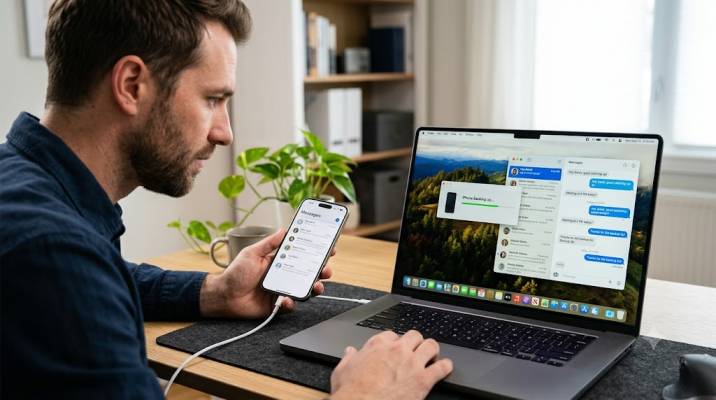
Apple treats your messages differently than photos or contacts. Messages live inside the device backup. You can’t pull them out on demand.
Read Also: Apple iPhone Duo: Everything to Know About Apple's First Foldable Phone
This matters because backup and export are not the same thing. A backup saves everything. An export gives you access to specific messages.
Most people searching how to backup iPhone actually want both. They want safety, and they want to read their old texts on a bigger screen. Apple only officially supports the first.
I spent a weekend testing four methods. Two gave me full backups. One gave me readable messages. One failed completely on my Windows PC.
1: iCloud Backup (Easiest, But With a Catch)
How to Set It Up
iCloud backup requires almost no effort. Go to Settings, tap your name, tap iCloud, then iCloud Backup. Turn on “Back Up This iPhone.” Tap “Back Up Now” for a manual backup.
Once enabled, your iPhone backs up automatically when connected to Wi-Fi, plugged into power, and locked. You don’t think about it again.
What You Get (And Don’t Get)?
Here’s the catch nobody explains clearly. If you have Messages in iCloud turned on, your messages are synced separately. They won’t be included in the iCloud Backup file itself.
This confused me at first. I had both enabled and wondered why my message count looked smaller than expected. The answer: Messages in iCloud stores them in the cloud as synced data, not as part of the device backup.
If Messages in iCloud is off, your messages are included in the backup. Either way, you can’t browse them. You can only restore them to an iPhone.
Free storage limit: 5GB. This fills fast. One year of heavy texting with photos and videos can exceed that easily. You’ll likely pay for iCloud+ if you text a lot.
Best for: People who want automatic protection without thinking about it. Not for people who want to read old messages on a computer.
2: iTunes or Finder Backup
On Windows: iTunes Still Works
Connect your iPhone to your PC with a USB cable. Open iTunes. Click the device icon in the top left. Go to Summary. Under Backups, select “This computer.” Click “Back Up Now”.
You Must Also Like: How to Share WIFI Password From iPhone to Android Easily?
Check “Encrypt local backup” if you want passwords and health data saved. Set a password you won’t forget. Without it, you can’t restore an encrypted backup.
The backup takes 10 to 30 minutes depending on how much data you have. My 128GB iPhone took about 22 minutes over USB.
On Mac: Finder Replaced iTunes
If you run macOS Catalina or later, Finder handles backups. Connect your iPhone. Open Finder. Select your iPhone in the sidebar. Click General. Select “Back up all of the data on your iPhone to this Mac.” Click “Back Up Now”.
Same encryption option. Same result.
The Frustrating Part
You cannot open the backup file and read your messages. The backup is a collection of encrypted database files. Even unencrypted backups aren’t human-readable.
I tried opening the backup folder on my Mac. I found files with cryptic names like “3d0d7e5fb2ce288813306e4d4636395e047a3d28.” No text files. No PDFs. Nothing I could open in TextEdit.
What this method gives you: A complete restore point. If you get a new iPhone, you restore everything exactly as it was.
What it doesn’t give you: Readable messages on your computer.
Best for: Anyone who wants a local backup they control. Also useful if iCloud storage is full and you don’t want to pay.
3: Third-Party Tools (The Only Way to Actually Read Messages)
Apple doesn’t offer this. So third-party developers fill the gap.
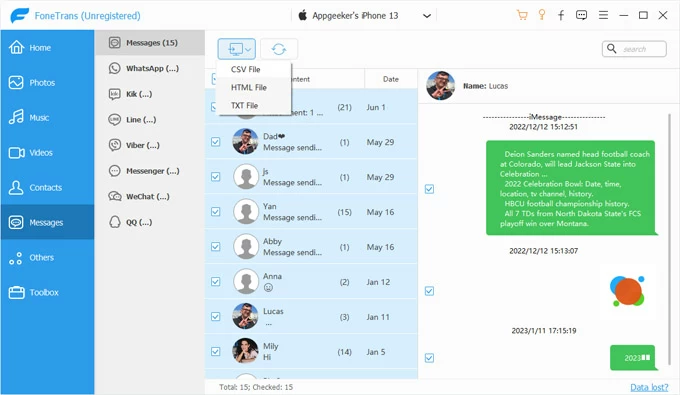
Tools like iMazing, AnyTrans, and EaseUS MobiMover can extract messages from your iPhone or from an iTunes backup. They export to PDF, HTML, or CSV.
I tested one on my Mac. It read my iTunes backup and showed every conversation in a clean interface. I exported a year of texts to PDF in about four minutes.
The trade-off: These tools cost money. Most offer free trials that limit how many messages you can export. Full versions run $30 to $60.
Privacy consideration: You’re giving a third-party app access to your messages. Reputable tools process everything locally on your computer. But you should verify that before paying.
Best for: People who genuinely need to read, print, or archive specific conversations. Not necessary if you only want a safety net.
4: Messages in iCloud (Sync, Not Backup)
This isn’t a backup method. But it’s worth understanding because it confuses people.
Messages in iCloud keeps your conversations synced across all Apple devices signed into the same Apple ID. Delete a message on your iPhone, it disappears from your Mac. Send a text on your iPad, it shows up on your iPhone.
To enable: Settings > Your Name > iCloud > See All > Messages in iCloud > Turn on “Use on this iPhone”.
This saves space on your device because messages live in iCloud. But it’s not a backup. If you delete a conversation, it’s gone from iCloud too.
Best for: People with multiple Apple devices who want consistent messaging everywhere. Not a replacement for an actual backup.
Which Method Should You Actually Use?
I use two methods together.
iCloud Backup runs automatically every night. It’s my safety net. I pay $0.99/month for 50GB because 5GB filled up within weeks.
Monthly Finder backup to an external drive. This gives me a local copy I control. If iCloud has issues, I’m not stuck.
Third-party export only when I need to find something specific. I exported my 2023 texts when I needed proof of a warranty conversation. That’s the only time I’ve needed readable messages.
For most people: iCloud Backup plus an occasional iTunes/Finder backup covers everything. You probably don’t need third-party tools unless you have a specific reason to read old texts on your computer.
Common Problems and Quick Fixes
“Not enough iCloud storage.” Delete old backups of devices you no longer use. Go to Settings > iCloud > Manage Storage > Backups. Old device backups can be several GB.
“Backup failed.” Check Wi-Fi. Restart your iPhone. Make sure you’re plugged into power. If it keeps failing, try a different Wi-Fi network.
“I forgot my encrypted backup password.” You cannot recover it. Apple has no way to reset it. You’ll need to start a new backup without encryption. This is why I write my backup passwords in a password manager.
“My messages aren’t in the backup.” Check if Messages in iCloud is on. If it is, messages sync separately and aren’t part of the device backup. Turn it off if you want them included in the backup file.
The Final Thoughts
Backing up iPhone text messages to a computer isn’t complicated. But the expectations matter. If you want safety, use iCloud Backup or Finder. Both work. Both protect you from data loss.
If you want readable messages on your computer, Apple doesn’t help you. You need a third-party tool. That’s the honest answer.
Don’t assume your messages are backed up because you see them synced on your Mac. Sync and backup are different. One deletes when you delete. The other keeps a copy.
Set up automatic iCloud backup today. Make a local backup this weekend. That’s enough for most people. The rest is just for peace of mind.
This article provides comprehensive insights about How to Backup iPhone Text Messages to a Computer?. Bookmark this page for future reference!