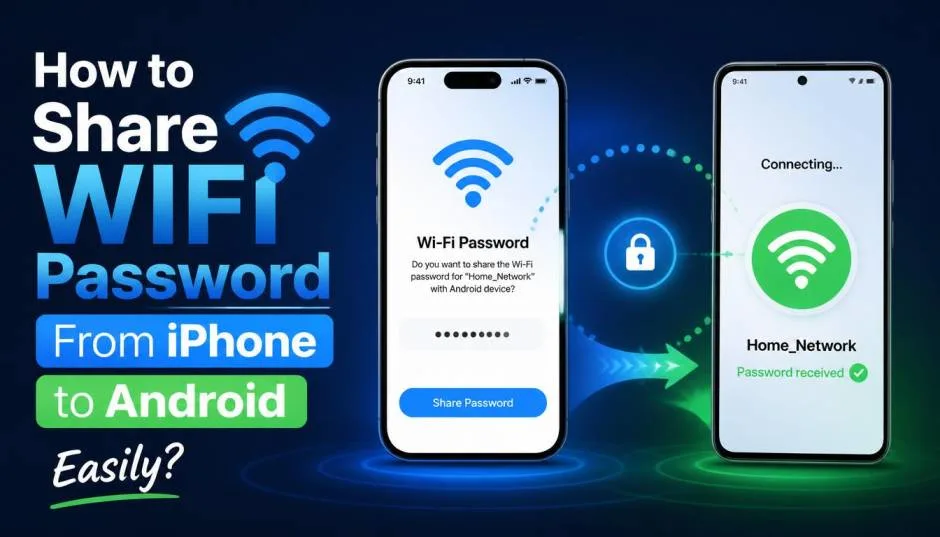
Want to know How to share WIFI password From iPhone to Android? You have friends over. They ask for your Wi-Fi password. You stare at the back of your router and realize you have not looked at that password since you set it up three years ago. We have all been there.
The good news is that sharing a Wi-Fi password from an iPhone to an Android device is entirely possible. Apple makes it seamless between Apple devices. But cross-platform sharing requires a few extra steps. Here is exactly how to do it.
How to Share WIFI Password From iPhone to Android?
Apple devices do not natively share Wi-Fi passwords with Android phones using the same one-tap method they use with other Apple devices . However, you have three reliable options:
Read Also: iPhone 17 A19 Chip Neural Accelerator Specs And AI Performance
-
View and copy the password from your iPhone settings, then send it to your friend.
-
Generate a QR code using the Shortcuts app or a third-party tool.
-
Use a third-party QR generator website like QiFi.org.
Let me walk you through each method.
1: View and Copy Your Wi-Fi Password
This is the simplest method when you are in a hurry. No extra apps. No QR codes. Just your iPhone settings.
Steps:
-
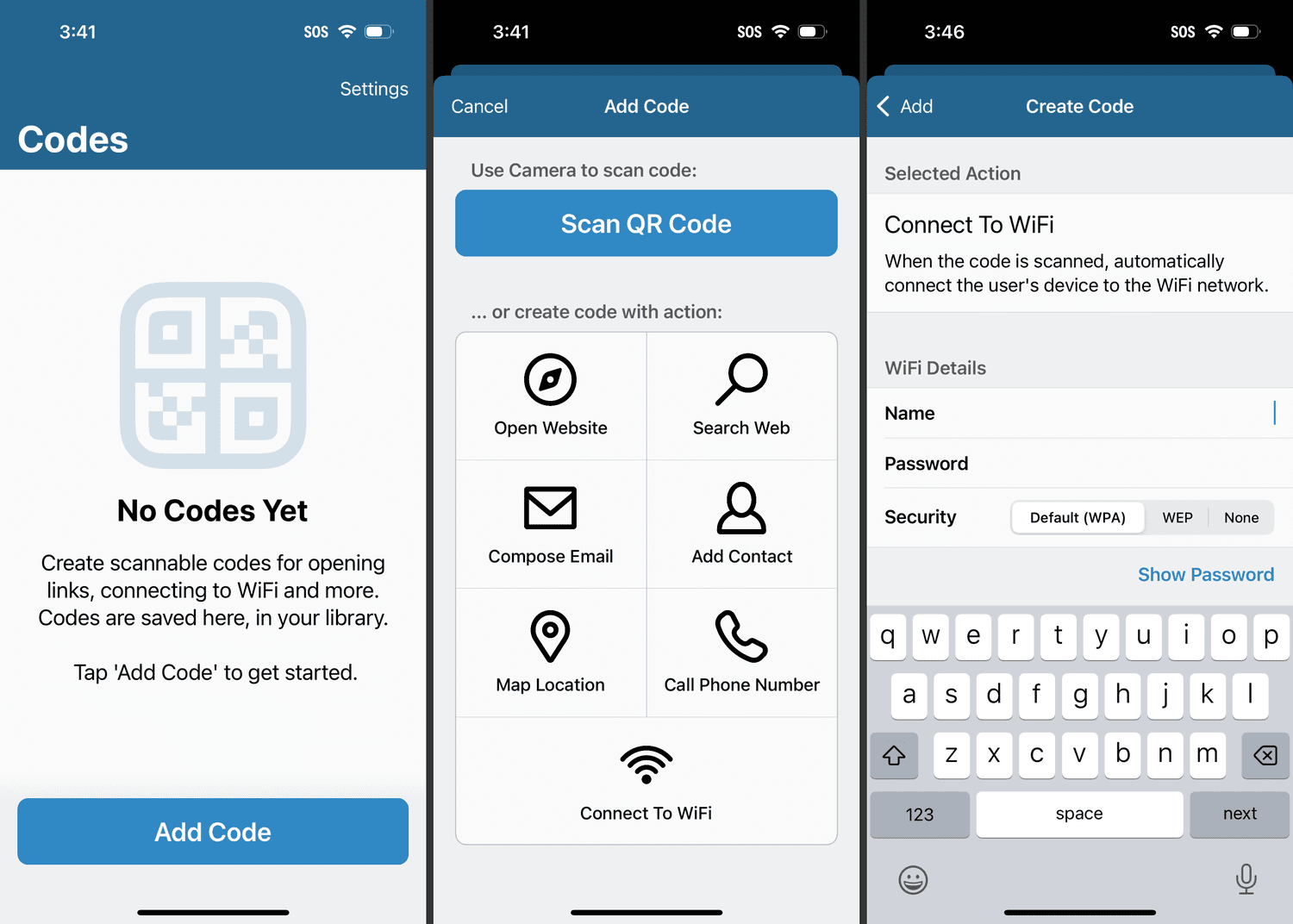
Open Settings on your iPhone.
-
Tap Wi-Fi.
-
Tap the blue "i" icon next to your connected network name .
-
Tap on the Password field.
-
Authenticate using Face ID, Touch ID, or your passcode .
-
The password will appear. Tap Copy to copy it to your clipboard.
-
Send the password to your Android-using friend via Messages, WhatsApp, or any messaging app.
Once your friend receives the password, they can manually enter it in their Android Wi-Fi settings and connect.
Pros: Fast, no third-party tools, works immediately.
Cons: You are sharing the password in plain text, which is less secure than a QR code .
2: Generate a QR Code Using the Shortcuts App (iOS 17+)
This is the most elegant method. The Android user scans the QR code with their camera, and they connect automatically. No typing required.
Steps to Create the Shortcut:
-
Open the Shortcuts app on your iPhone.
-
Tap the + button to create a new shortcut.
-
Tap Add Action.
-
Search for and select Text.
-
In the text box, enter your Wi-Fi credentials in this exact format:
text
WIFI:S:YourNetworkName;T:WPA;P:YourPassword;;
Replace
YourNetworkNamewith your actual Wi-Fi name andYourPasswordwith your actual password.If you are not sure about your network's security type, most home networks use WPA or WPA2. The
T:WPA;part works for most modern routers. -
Tap Add Action again.
-
Search for and select Generate QR Code.
-
Tap Add Action one more time.
-
Search for and select Quick Look.
-
Run the shortcut by tapping the play button at the bottom.
The QR code will appear on your screen. Ask your Android friend to open their camera app and point it at the QR code. Android's built-in scanner will detect the code and offer to connect to the network automatically.
Quicker Alternative: Use the Gallery Shortcut
If you do not want to build a custom shortcut:
-
Open the Shortcuts app.
-
Tap the Gallery tab at the bottom.
-
Search for Wi-Fi.
-
Look for the "QR Your Wi-Fi" shortcut and tap Add Shortcut .
-
Go to All Shortcuts and run "QR Your Wi-Fi."
-
It will prompt you to enter your network name and password, then generate the QR code instantly.
3: Use a Third-Party QR Code Generator Website
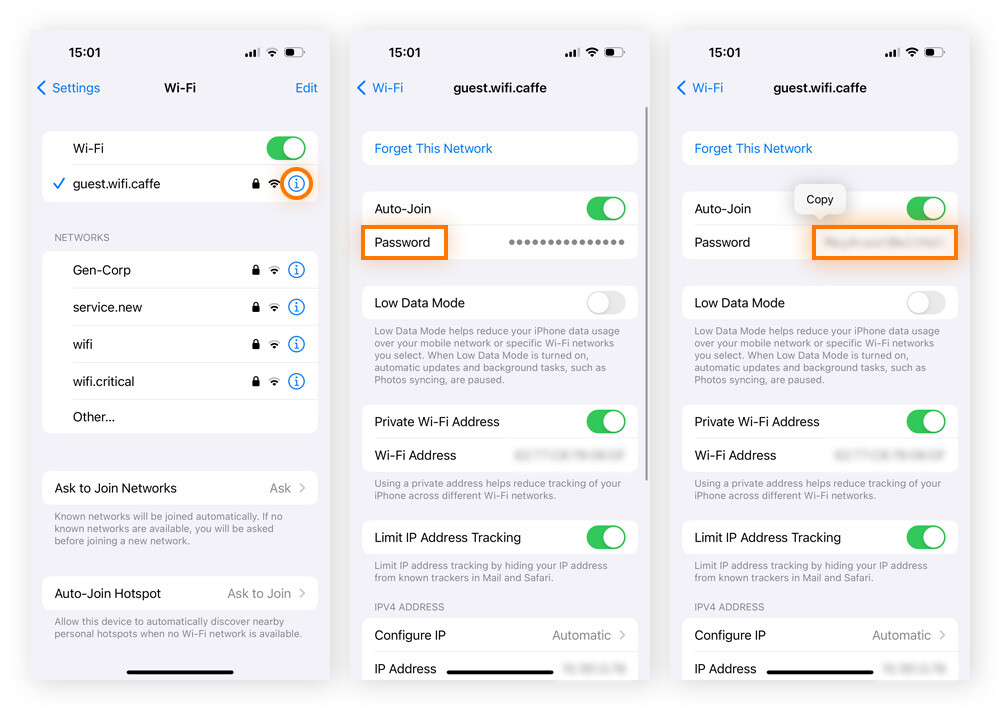
If the Shortcuts app feels complicated, use a free website.
Steps:
-
Open Safari on your iPhone.
-
Go to a QR code generator website like QiFi.org or any trusted QR generator that supports Wi-Fi codes .
-
Enter your Wi-Fi network name (SSID), security type, and password .
-
Click Generate.
-
The QR code appears on your screen.
-
Ask your Android friend to scan it with their camera or QR scanner app.
This method works exactly like the Shortcuts method but uses a website instead. The code stays on your screen, so your friend just points their camera at it .
How to Share From Android to iPhone?
If you are on the other side of this situation and need to share from an Android device to an iPhone, the process is even simpler.
Steps on Android:
-
Open Settings.
-
Tap Network & Internet or Connections (depending on your phone) .
-
Tap Wi-Fi.
-
Tap the gear icon or the network name next to your connected network.
-
Tap the Share icon or QR Code icon.
-
Authenticate with your PIN, pattern, or fingerprint.
-
A QR code will appear on the screen.
The iPhone user can then open their Camera app, point it at the QR code, and a notification will pop up asking if they want to join the network . One tap and they are connected.
Important Security Considerations
QR codes are more secure than sharing passwords in plain text. When you copy and paste a password over messages, it stays in the chat history. That becomes a permanent security risk if your phone gets compromised later.
You Must Also Like: iPhone Portrait Mode: How to Take Stunning Photos Like a Pro?
Wi-Fi QR codes use standard Wi-Fi security protocols. They only share network credentials, not your personal data. The Android device connects directly to the router using WPA2 or WPA3 encryption.
Use a password manager if you share Wi-Fi frequently. Tools like Google Password Manager or NordPass can securely store and share credentials without exposing the actual password.
Final Thoughts
Sharing a Wi-Fi password from an iPhone to an Android device is not as seamless as Apple-to-Apple sharing, but it is still easy. The QR code method is my recommendation. It takes two minutes to set up the Shortcut, and then you have a reusable QR code generator in your pocket.
Set up the Shortcut once and never struggle with Wi-Fi passwords again. It will save you more time than you expect. And if a friend needs your Wi-Fi again next week, you just open the Shortcut, run it, and let them scan.
This article provides comprehensive insights about How to Share WIFI Password From iPhone to Android Easily?. Bookmark this page for future reference!