You take a photo. Later you realize the composition is off. The subject sits too far left. The angle feels wrong. Normally you live with it or crop the image and lose half the frame. That changes in iOS 27.
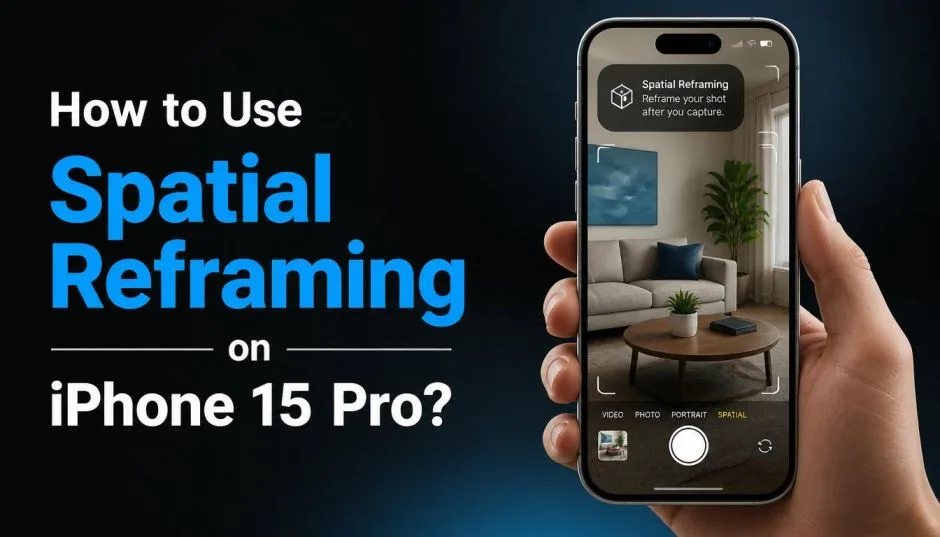
Apple just announced Spatial Reframing at WWDC 2026. The feature uses AI to reposition your camera perspective after you take the shot. Touch and drag.
The viewpoint shifts left, right, up, or down. The phone generates the missing content automatically. Here is exactly how it works, what gear you need, and why the name confuses everyone.
How to Use Spatial Reframing on iPhone?
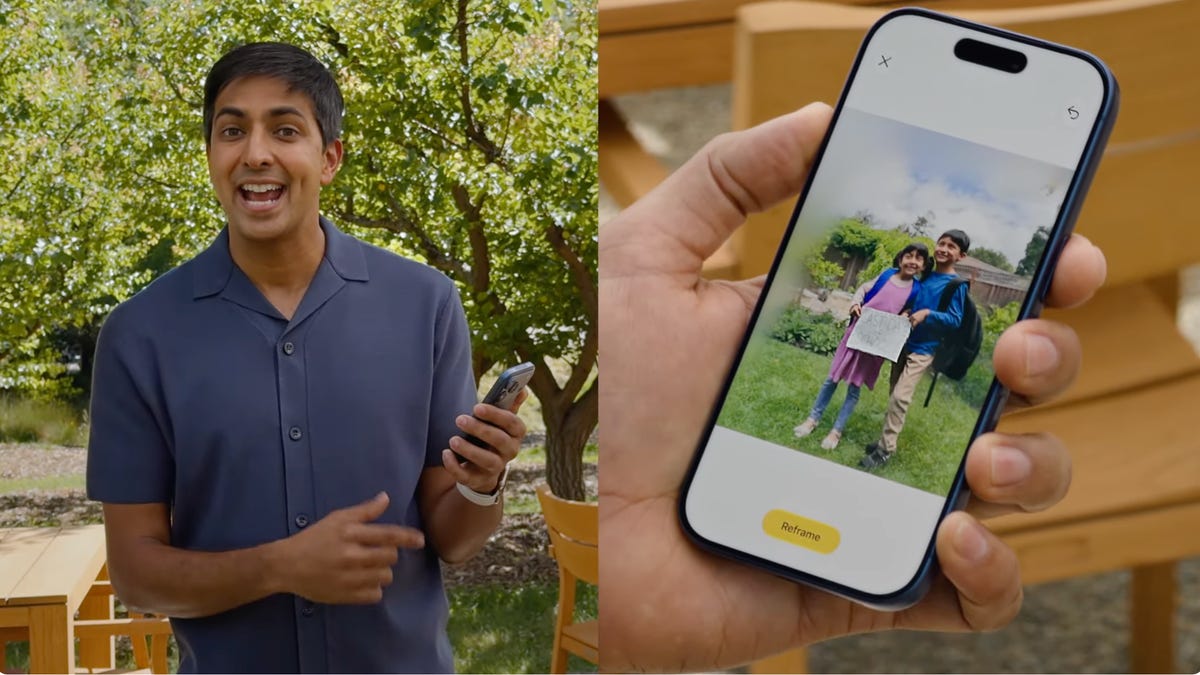
The name "Spatial Reframing" sounds like something for spatial video or the Vision Pro headset. That is not accurate. Despite the name, Spatial Reframing works with all photos, not just spatial ones. Your old vacation pictures. Screenshots.
Read Also: How to Get the New AI Siri on iPhone 15 Pro Max?
Photos taken on a Samsung or Google Pixel. All of them work. The feature has nothing to do with 3D depth or the Apple Vision Pro. It is a generative AI editing tool that changes 2D perspective after capture.
This confusion is everywhere right now. Even tech journalists initially misunderstood. The "spatial" in the name refers to how the AI understands the three-dimensional layout of your scene, not the file format of your photo.
What Spatial Reframing Actually Does?
Apple built this feature on two layers of AI processing. Ondevice spatial models handle the perspective calculation in real time. Private Cloud Compute handles the generative fill for areas outside the original frame.
Here is the stepbystep of what happens when you use it:
-
You open a photo in the iOS 27 Photos app
-
You tap Edit, then find the new Reframe tool
-
You touch and drag the image to shift the camera angle
-
The areas that were originally outside the frame turn blurry
-
Apple Intelligence generates new content to fill those blurry edges
-
The final image looks consistent with the original scene
The AI does not regenerate the entire image. It only adds content where the perspective shifted. This is much harder to pull off than simple generative fill because the system needs to understand the spatial layout of the scene. A wall that was on the left side of the frame needs to look correct when the camera "moves" to the right.
Real-World Examples of When to Use It?
Fixing a crooked horizon. You took a beach photo. The horizon tilts downward to the right. Normally you rotate the image to straighten it, but that crops the corners. Spatial Reframing lets you rotate and fill the missing corners instead of cropping.
Repositioning a missed subject. Your kid blew out birthday candles. You framed the shot too far left. Now you drag the image to center the candles. The AI fills the left side of the frame with the birthday cake background that was originally cut off.
Changing perspective after the fact. You photographed a dog from headon. Later you decide a slight side angle would look better. Spatial Reframing shifts the viewpoint as if you physically moved the camera to the left or right.
Apple confirmed these tools are not limited to new photos. They work on existing images in your library, including photos taken with nonApple cameras.
Wait, What Is the Difference Between Spatial Video and Spatial Reframing?
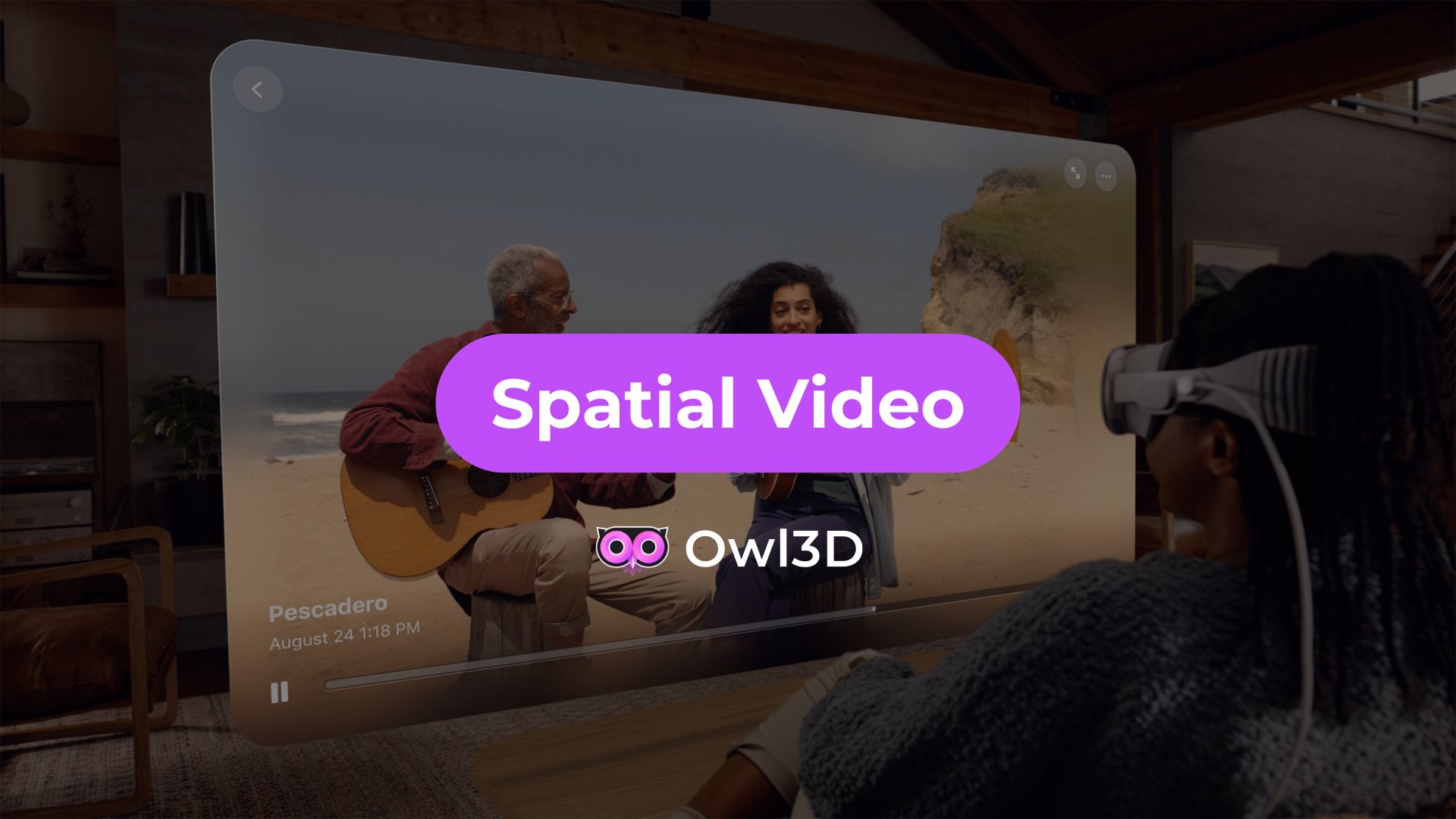
This is where most people get lost. The terms overlap but mean completely different things.
Spatial video recording (existing feature on iPhone 15 Pro): This captures true 3D video using the dual cameras. The left and right lenses record separate angles. When played on Apple Vision Pro, you see genuine depth. The file format is spatial.
Spatial Reframing (new in iOS 27): This is a 2D AI editing tool. It changes the perspective of a flat photo by generating new content. It does not create 3D depth. It does not require an Apple Vision Pro. It works on any photo.
You can record spatial videos on your iPhone 15 Pro right now. That has been available since iOS 18.1. Spatial Reframing is a separate feature arriving in iOS 27 this fall. Keep the two names straight when you read Apple news.
Do You Need an iPhone 15 Pro for Spatial Reframing?
The short answer: No. But the longer answer requires clarification.
Spatial Reframing is part of Apple Intelligence. It runs on any device that supports the iOS 27 update and Apple Intelligence features . That includes:
-
iPhone 15 Pro and iPhone 15 Pro Max
-
All iPhone 16 models
-
iPhone 17 series and beyond
-
Mseries iPads and Macs
Your iPhone 15 Pro works perfectly fine. You do not need to upgrade to a newer phone for this specific feature.
However, spatial video recording has different hardware requirements. That feature requires an iPhone 15 Pro or newer. The dual cameras need to mimic human depth perception. Standard iPhone 15 models without the Pro label do not support spatial video capture.
How to Record Spatial Video on iPhone 15 Pro (The Old Feature)
Since people keep mixing these up, here is a quick refresher on the original spatial video feature:
Open Camera on your iPhone 15 Pro
Select Video mode and rotate to landscape orientation
Tap the spatial icon (looks like a Vision Pro headset)
Tap record and keep the phone steady
Frame subjects 3 to 8 feet from the camera
Use bright, even lighting for best results
Tap stop when finished
File size note: One minute of spatial video takes about 130MB of storage. Regular 1080p video at 30fps takes about 65MB. Spatial video doubles your storage usage.
Viewing requirement: These videos appear as normal 2D video on your iPhone screen. The 3D depth only shows up when viewed on an Apple Vision Pro headset.
Other iOS 27 Photo Editing Tools Coming Alongside Spatial Reframing
Apple announced three new Apple Intelligencepowered editing tools at WWDC 2026:
Extend Tool: Adds content beyond an image's edges. Need more sky above a mountain? The Extend tool generates it. Need to change the apect ratio from 4:3 to 16:9? Extend fills the new space.
You Must Also Like: Apple iPhone 18 Pro Leaks Tease Imminent Launch and India Price Shock
Improved Clean Up: The existing object removal tool gets upgraded. Removing a stranger from a group shot or a sign from behind someone's head looks significantly better. Apple promises "better quality and more realistic infill" even in complex backgrounds.
All three features appear in a new dedicated editing section inside Photos that groups every Apple Intelligence tool together.
What Spatial Reframing Does NOT Do?
Honest limitations. No marketing hype.
Does not create 3D depth. Your photo remains a flat 2D image. You are shifting perspective within the 2D plane, not turning the image into a 3D model.
Does not work miracles on complex scenes. The AI generates content based on the original photo's information. A cluttered background with many overlapping objects may produce visible artifacts.
Does not replace good photography. Spatial Reframing fixes composition mistakes. It cannot fix bad lighting, blurry focus, or ugly subjects. Garbage in, slightly reframed garbage out.
Does not work on Live Photos or burst mode. The feature requires a single static image as input. Motionbased formats are not supported.
When Will iOS 27 Launch?
Apple announced Spatial Reframing at the WWDC 2026 keynote on June 8, 2026. The iOS 27 update will be released to the public in fall 2026.
Developer beta access started immediately after the keynote. Public beta typically follows in July. The final release lands in September alongside new iPhone hardware.
If you own an iPhone 15 Pro today, you cannot use Spatial Reframing yet. You need to wait for the iOS 27 update. The feature is not backported to older iOS versions.
Should You Upgrade to iOS 27 Just for This?
Depends on how often you mess up photo composition.
If you take lots of photos and hate cropping, Spatial Reframing saves time. No more deleting a shot because you framed it poorly. No more frustration when you realized you stood too far left.
If you rarely edit photos or already nail composition on the first try, this feature does nothing for you. It solves a problem you do not have.
The real value of iOS 27 for photographers is the combination of all three tools. Spatial Reframing fixes perspective. Extend fixes aspect ratio and cropping. Clean Up removes distractions. Together, they cover 90% of what people use Photoshop or Lightroom for. That might be worth the upgrade on its own.
The Final Thoughts
Spatial Reframing is not a Vision Pro feature. It is not about 3D video. It is an AI perspectiveshifting tool for any photo on your iPhone. Touch and drag to change the camera angle after you take the shot. The phone generates the missing content.
It works on old photos, new photos, and photos from other cameras. The feature arrives in iOS 27 this fall on all Apple Intelligencecompatible devices including your iPhone 15 Pro. Ignore the confusing name. The tool itself is genuinely useful.
This article provides comprehensive insights about How to Use Spatial Reframing on iPhone 15 Pro? What You Know?. Bookmark this page for future reference!