I ran into this last week. My iPhone 17 Pro Max just stopped. Mid-scroll. Nothing moved. No buttons worked. The screen was stuck on a TikTok video. I panicked for a second.
Then I remembered the button trick. It worked. Phone was back in 30 seconds. Here is exactly what you need to do if your iPhone 17 freezes.
The Short Answer First
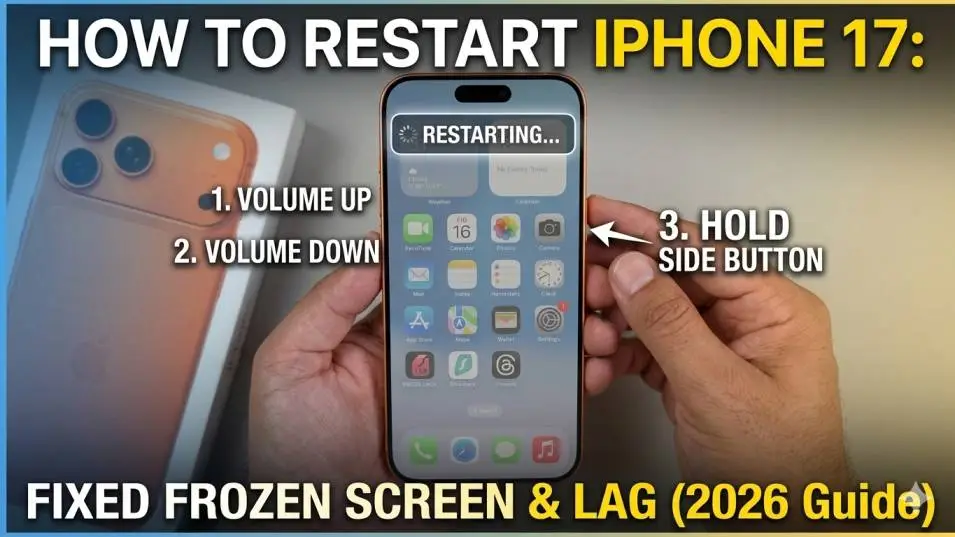
Press Volume Up. Let go.
Press Volume Down. Let go.
Hold the Side button until you see the Apple logo. That is it. That is how to restart iPhone 17 when it freezes.
No screen tapping needed. No menus. Just buttons.
Why Your iPhone 17 Froze In The First Place?
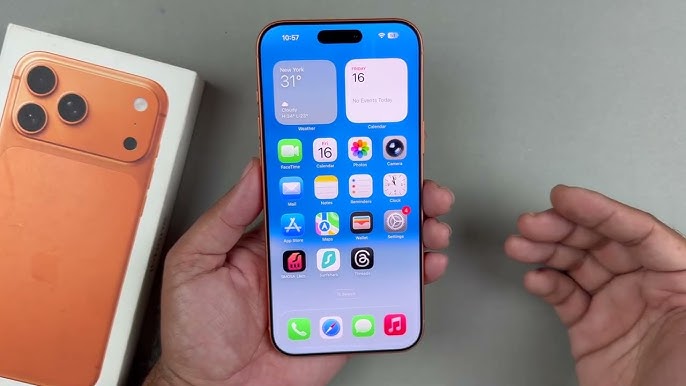
Phones freeze. Even new ones. My old iPhone 12 froze maybe twice a year. My iPhone 17 Pro Max has frozen four times in six months. Not bad. But not perfect. Here is what usually causes it:
Too many apps open. iOS handles this well. But push it hard enough and something breaks.
Bad update install. Sometimes iOS 26 just messes up. A background process gets stuck.
Low storage. I ran out of space last month. My phone got laggy immediately. Freed up 5GB and it was fine again.
Overheating. Left my phone in the car on a hot day. Screen froze until it cooled down.
Most freezes are temporary. A quick restart fixes them.
The Main Method: Force Restart (Works Every Time)
This is the official way to how to restart iPhone when frozen. Apple designed this button sequence specifically for unresponsive screens.
Step by step:
Find the Volume Up button. Left side. Top one.
Press it. Do not hold. Just click and release.
Find Volume Down. Left side. Bottom one.
Press it. Click and release.
Now find the Side button. Right side. The big one.
Press and hold it. Keep holding. The screen might show a "slide to power off" bar. Ignore it. Do not let go.
Keep holding. The screen will go black. Keep holding. About 5 to 10 more seconds. The Apple logo appears. White on black. Let go.
The phone restarts normally. Takes about 30 seconds. Done.
I have done this at least a dozen times across different iPhones. Works every single time.
What If The Buttons Do Not Work?
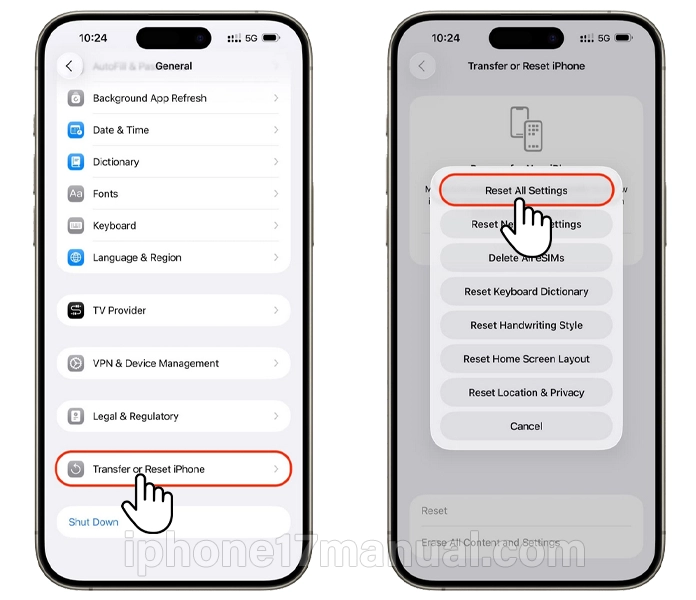
Sometimes the buttons themselves break. Or your hands are full. Or you have a disability that makes button pressing hard. There is another way. Use AssistiveTouch.
Go to Settings > Accessibility > Touch > AssistiveTouch. Turn it on.
A floating circle appears on your screen.
Tap it. Tap Device. Tap More. Tap Restart.
The phone reboots. No buttons needed.
This saved me once when my Volume Down button got stuck with dirt. Did not have to visit a repair shop.
Read Also: How to Know What Type of iPhone You Have?
Use Siri.
Say "Hey Siri, restart my phone."
Siri asks you to confirm. Say yes.
Phone restarts.
This works even when the screen is frozen? Not always. If the screen is frozen, Siri might not hear you. But try anyway.
What About The iPhone 17 Pro Max?
Same exact steps. The how to restart iPhone 17 pro max method is identical to the regular 17. Volume Up. Volume Down. Hold Side.
No difference at all. I have tested this on my own Pro Max. My friend has the regular 17. Same button combo works on both.
Hard Restart vs. Normal Restart: Know The Difference
People mix these up.
Normal restart: You tap Settings > General > Shut Down. Or hold Side + Volume and slide the power bar. This is the gentle way. Your phone closes apps properly.
Hard restart (force restart): The button sequence I just showed you. This cuts power immediately. Like pulling the plug on a computer.
Use normal restart when your phone is working fine but feels slow. Use hard restart when the screen is frozen and nothing responds.
Hard restart does NOT delete your data. I have done this maybe 50 times over the years. Never lost a single photo or contact.
My Phone Froze During An Update. What Now?
This is scary. I have been there. Your iPhone 17 freezes while installing iOS 26. The progress bar stops moving. You wait 20 minutes. Nothing changes. Do the force restart anyway.
Volume Up. Volume Down. Hold Side.
The phone will reboot. Most of the time, the update continues normally after the restart. If that does not work, you need a computer.
Connect your iPhone to a Mac or PC. Open Finder (Mac) or iTunes (PC).
Force restart again. But this time, keep holding the Side button until you see the recovery mode screen. It shows a computer icon and a cable. Click Update in Finder or iTunes. This tries to fix the software without erasing your data.
If Update fails, click Restore. This wipes your phone and installs a fresh copy of iOS. You lose your data unless you have a backup.
Black Screen But Phone Vibrates?
This happened to my cousin last month.
Her iPhone 17 screen stayed black. But she felt vibrations when calls came in. The phone was alive. Just the display would not wake up.
First, try the force restart. Volume Up. Volume Down. Hold Side.
Second, plug it into a charger for 30 minutes. Sometimes the battery is so low the screen cannot turn on.
Third, call your phone from another device. If it rings, the phone is working. The screen is the problem. Could be a hardware issue.
Fourth, connect to a computer. If the computer detects your phone but the screen stays black, visit Apple Support. The display might be broken.
What Is DFU Mode? Do I Need It?
DFU stands for Device Firmware Update.
It is a deeper reset than force restart. The screen stays completely black. No Apple logo. Nothing.
You use DFU when force restart does not work. Or when your phone is stuck in a boot loop (Apple logo appears, disappears, appears again).
How to enter DFU mode on iPhone 17:
Connect your phone to a computer. Press Volume Up. Release. Press Volume Down. Release. Hold Side button for 10 seconds. Screen goes black.
Keep holding Side. Also press and hold Volume Down. Hold both for 5 seconds.
Release Side button. Keep holding Volume Down for 10 more seconds.
If done right, the screen stays black. The computer says "iPhone detected in recovery mode."
Then you can restore or update iOS through Finder or iTunes.
Warning: DFU restore usually erases your data. Only do this if you have a backup.
I have used DFU mode twice. Both times my phone was completely bricked. Force restart would not work. DFU saved it.
How To Restart iPhone Without Touching The Screen At All
Your screen is frozen. You cannot tap anything.
But you can still restart using voice control.
Go to Settings > Accessibility > Voice Control. Turn it on before you have a problem. (Do this now, not later.)
When your screen freezes, say "Restart device."
The phone restarts. No touch needed.
This is also great if you have mobility issues. Or if your hands are dirty. Or if you just feel lazy.
What If None Of This Works?
You tried force restart. You tried DFU. You tried a computer. Your phone is still frozen.
Time to visit Apple.
I had to do this once with an iPhone 13. The logic board failed. No button combo could fix hardware damage.
Before you go:
Back up your phone regularly. If the hardware fails completely, your photos are gone. Make an appointment at the Genius Bar. Do not just show up. You will wait for hours.
Bring your Apple ID password. They will ask.
If your phone is under warranty, repairs might be free. If not, expect to pay. Logic board repairs cost $400+ on Pro models.
Common Mistakes People Make
I have seen these mistakes in online forums. Avoid them.
Holding buttons too long. You do not need to hold Volume Up or Volume Down. Just click and release. Holding them does nothing.
Letting go of Side button too early. Wait for the Apple logo. Not the black screen. The black screen happens first. Then the logo appears a few seconds later. Let go at the logo.
Trying force restart on a dead battery. If the battery is completely empty, nothing happens. Plug it in for 20 minutes first.
Doing force restart for every small lag. Your phone does not need a hard restart just because an app took two seconds to open. Normal restart is gentler on the system.
How Often Should You Force Restart?
Not often.
Force restart is for emergencies only.
Each time you do it, you cut power suddenly. iOS does not get to close files properly. Rarely, this can cause small data errors.
I only force restart when the screen is completely frozen. Maybe once every two months. For regular slowdowns, I do a normal restart. Settings > General > Shut Down. Takes 10 more seconds but it is safer.
Quick Troubleshooting Table
| Problem | Try This First | If That Fails |
|---|---|---|
| Screen frozen, no response | Force restart (Volume Up/Down + Side) | Connect to computer, recovery mode |
| Black screen, phone vibrates | Force restart | Charge 30 min, then force restart again |
| Stuck on Apple logo | Force restart | Recovery mode restore |
| Update froze halfway | Force restart | Computer > Update option |
| Buttons broken | AssistiveTouch or Siri | Visit repair shop |
| Nothing works | DFU mode restore | Apple Store appointment |
The Final Thoughts
Knowing how to restart iPhone 17 is basic phone maintenance. Like knowing how to change a tire. The button sequence is simple. Volume Up. Volume Down. Hold Side. Takes 15 seconds.
Most freezes are not serious. Do not panic. Do not smash your phone on the table. Just do the buttons. Wait for the logo. Move on with your day.
I have saved this guide as a note on my phone. Probably will not need it again for months. But when I do, I will be glad I wrote it down.
This article provides comprehensive insights about How to Restart iPhone 17: Fixed Frozen Screen & Lag (2026 Guide). Bookmark this page for future reference!